📱 iPhone / iPad 🤖 Android
iPhone / iPad
Safari is required on iPhone. Chrome won't show the install option.
1

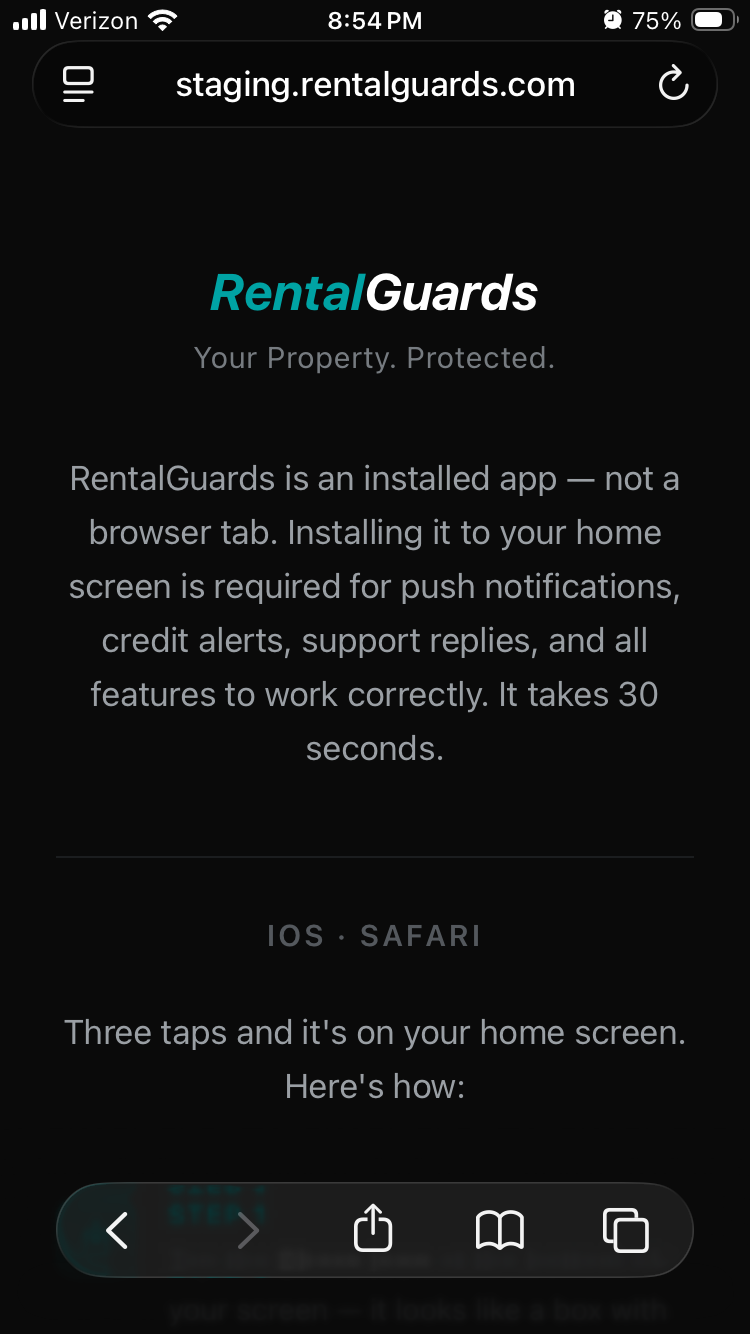
Open rentalguards.com in Safari.

Safari is required on iPhone — Chrome won't show the install option.

Screenshot — Safari showing rentalguards.com
2

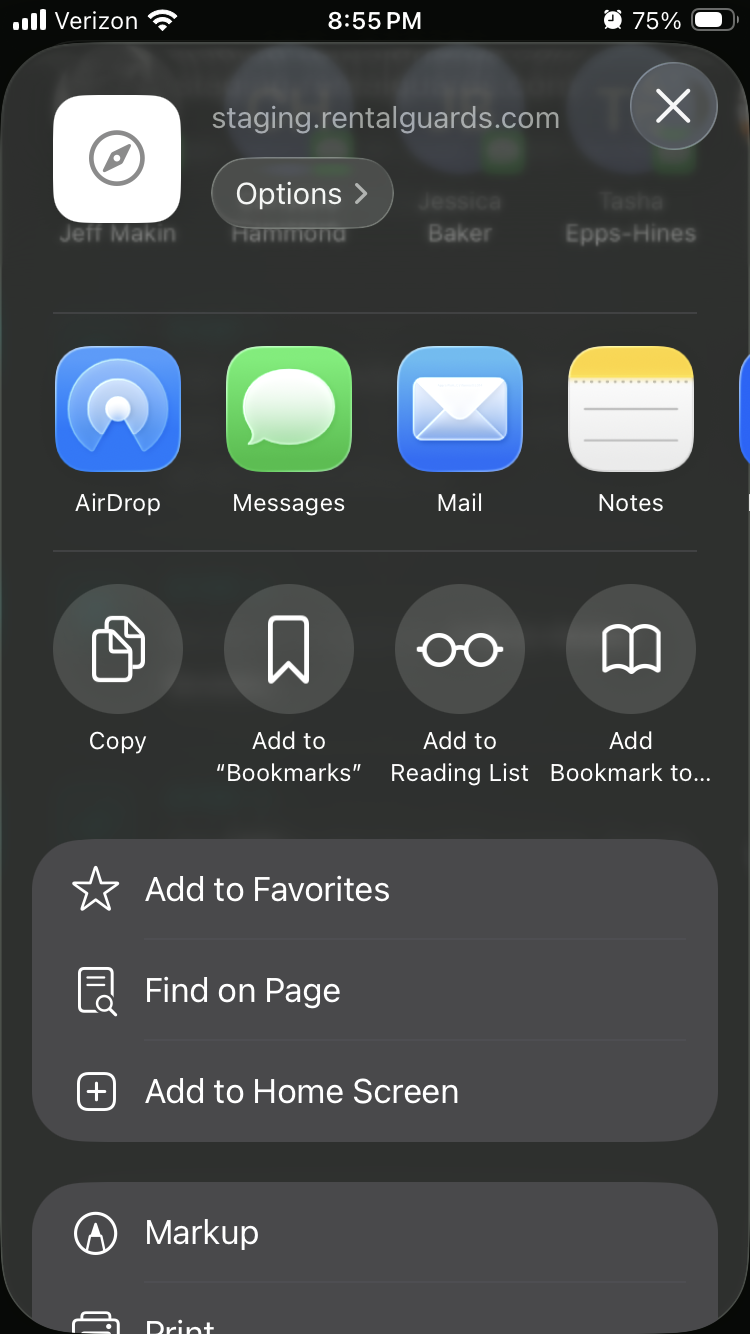
Tap the Share button.

It's at the bottom of your screen — a box with an arrow pointing up.

Screenshot — Share button highlighted
3

Tap Add to Home Screen.

Scroll down in the share sheet until you see it.

Screenshot — Add to Home Screen option
4

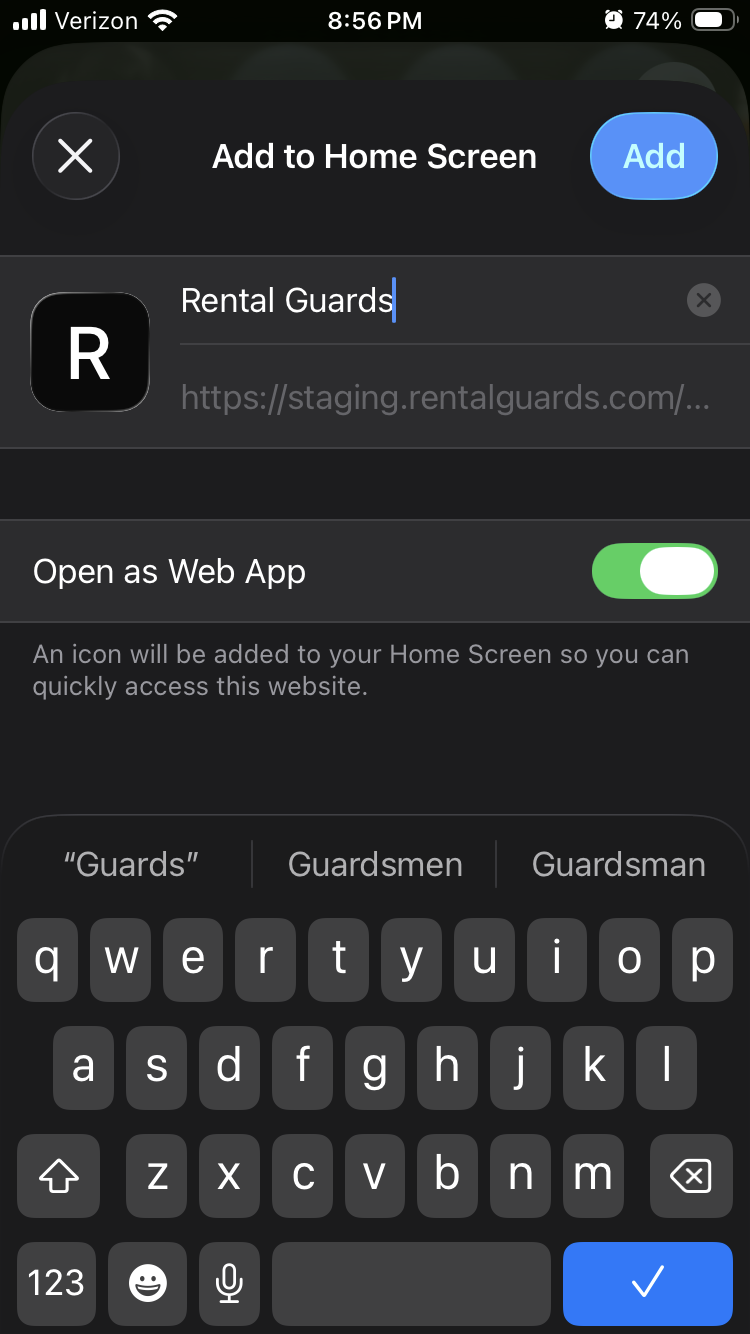
Tap Add in the top right corner.

Screenshot — Confirmation screen with Add button
5

You're done.

Open the app from your home screen and create your account.
Screenshot — RentalGuards icon on iPhone home screen

Android
Chrome works best on Android. Open rentalguards.com in Chrome for the install option.
1

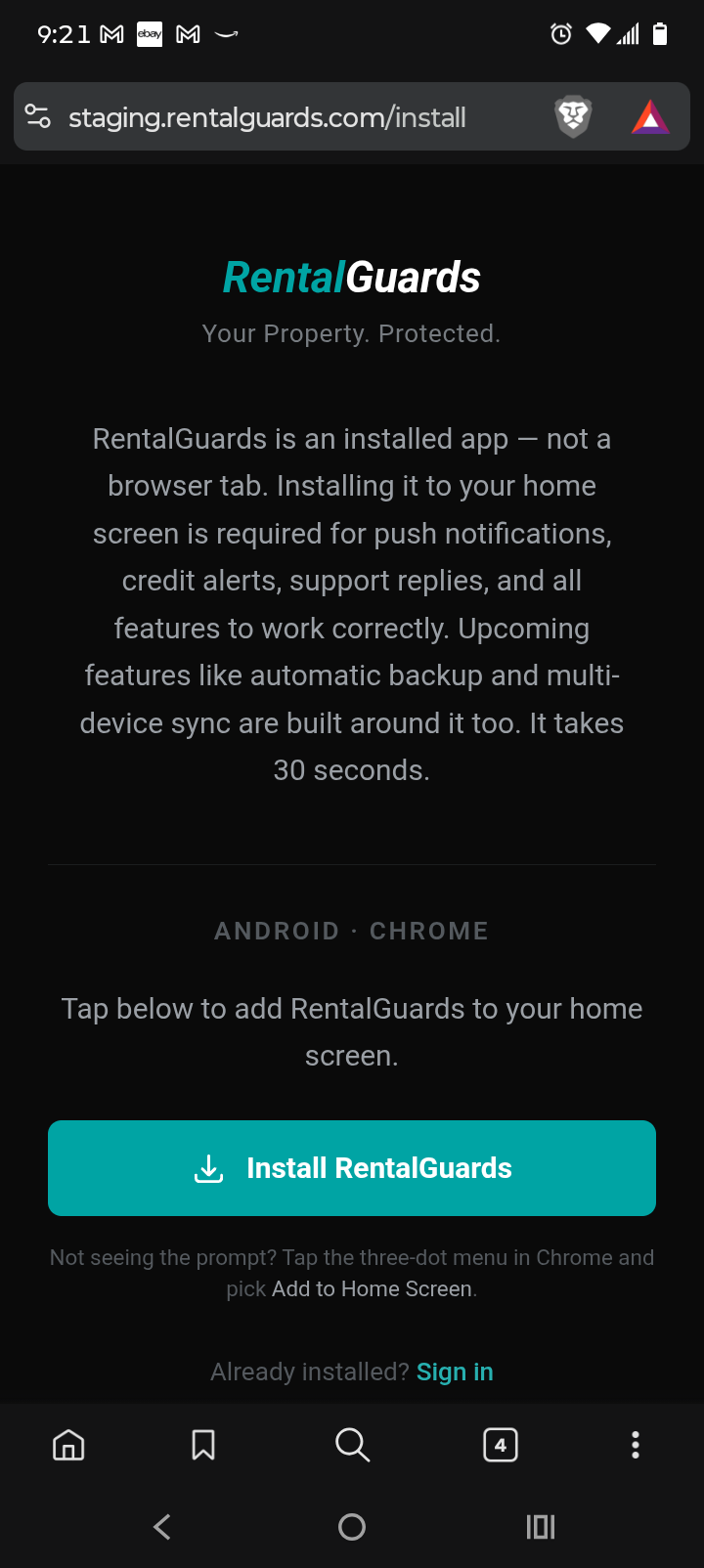
Open rentalguards.com in Chrome.

Screenshot — Chrome showing rentalguards.com
2

Tap the three-dot menu in the top right.

Tap Add to Home Screen — on newer Android phones it may say Install App.

Screenshot — Three-dot menu with Install App option
3

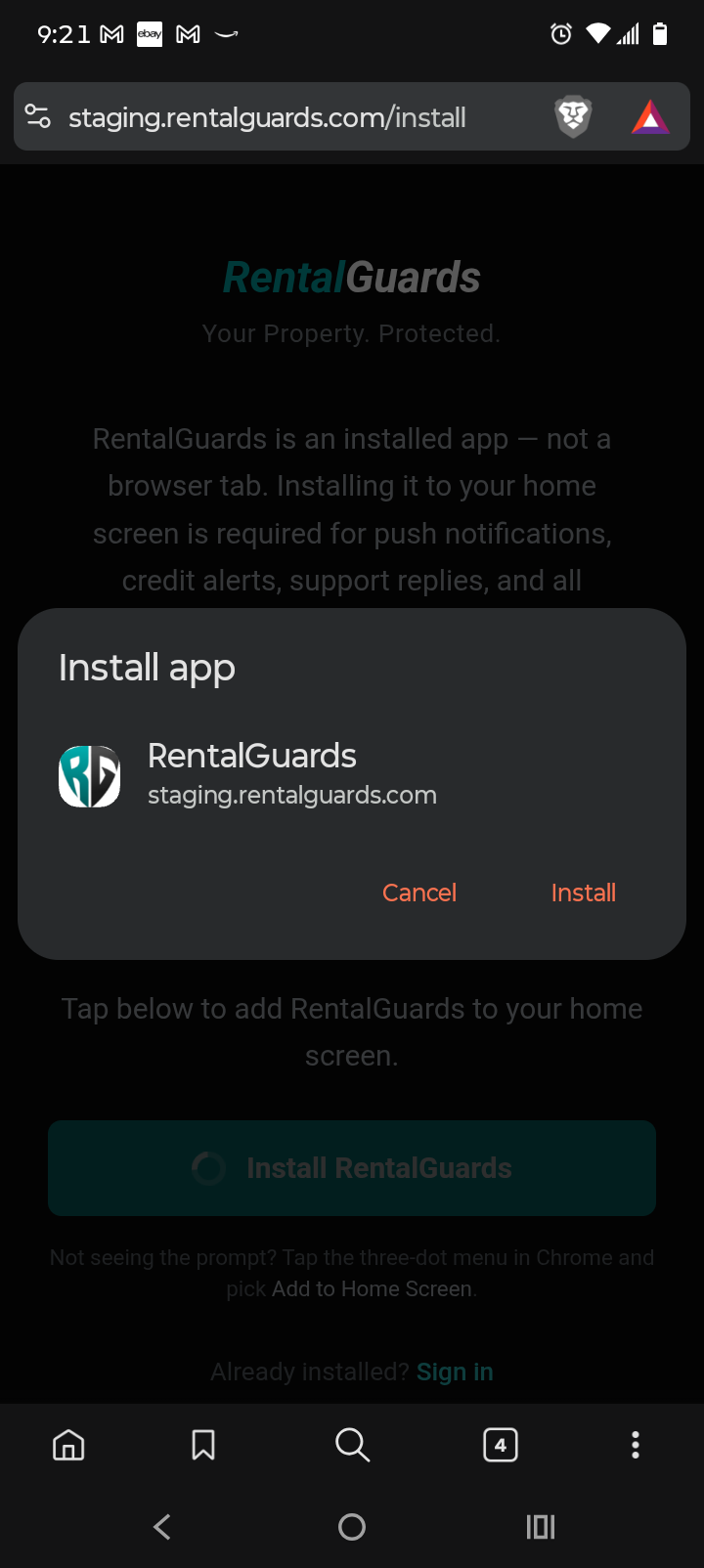
Tap Add or Install to confirm.

Screenshot — Confirmation dialog
4

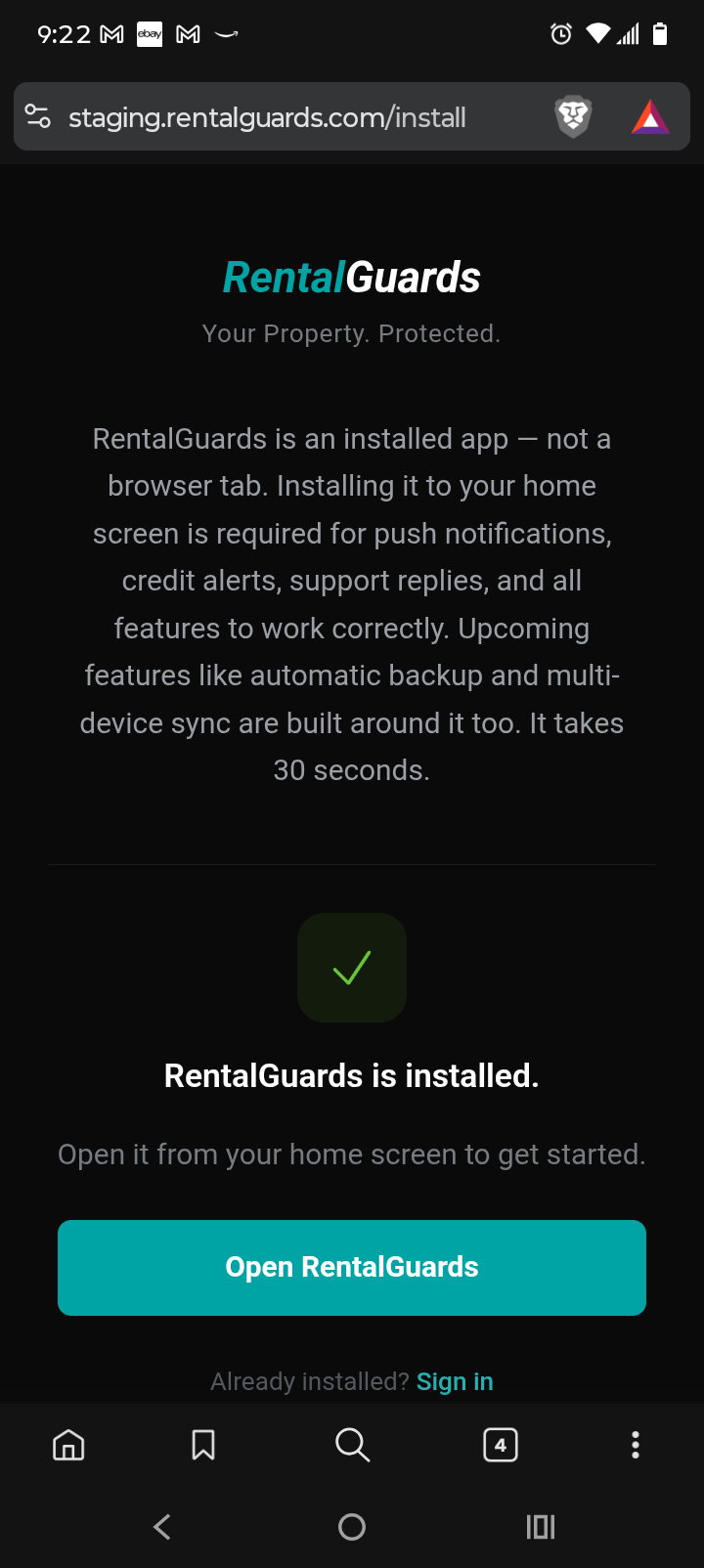
You're done.

Open the app from your home screen and create your account.
Screenshot — RentalGuards icon on Android home screen

Already installed?

Open RentalGuards →